Chapter 25 FAQ and Troubleshooting
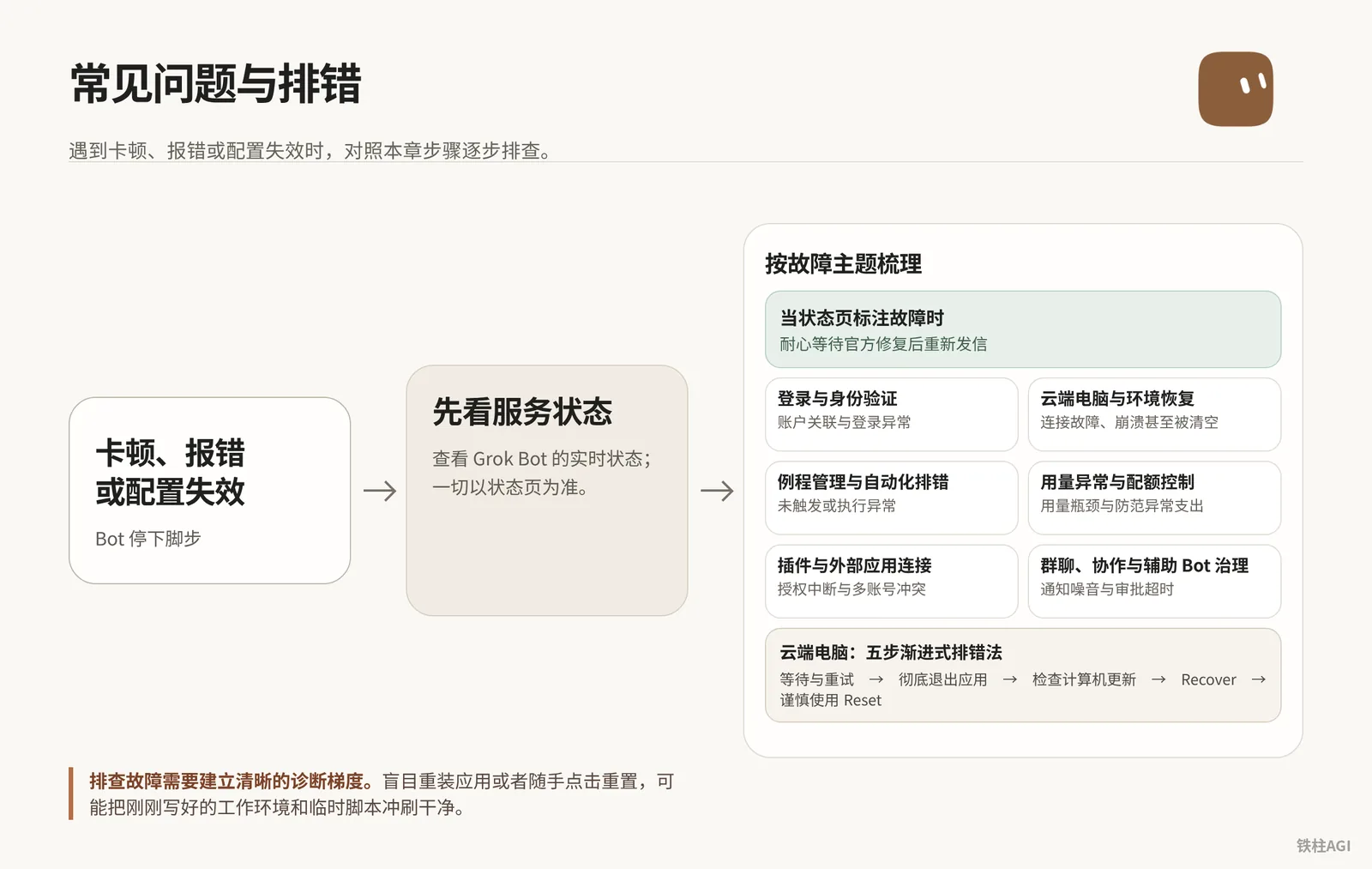
When encountering errors or lag, never blindly reinstall or reset, as this will wipe out the newly configured environment and temporary scripts.
- Check service status first.
- Then troubleshoot whether the issue is local network, plugin authorization, cloud environment, or weekly limits.
What should I do if there are issues with Grok Bot sign-in and account linking?
Individual users link authorization via the settings page or a dedicated link, enterprise seats sign in directly with Grok. If linked incorrectly, contact human customer support. If stuck in a redirect loop, clear cookies and authenticate in incognito mode.
Account and Subscription Limitations
Grok Bot runs on Cursor and is independent of Grok mobile's paywall and weekly limit restrictions (Weekly SuperGrok Limit).
The individual edition supports SuperGrok, Plus, and Heavy editions, as well as X Premium+; SuperGrok Lite and Grok Enterprise cannot be linked to individual accounts, and enterprise seats are uniformly allocated by administrators.
The account email cannot be changed after registration, and linking with Cursor is a one-time permanent binding. If the wrong account is linked, it cannot be transferred by yourself, and human customer support must be contacted.
Linking and Sign-In Steps
Individual linking: Open cursor.com/bot/onboarding or navigate in the client to Settings > Usage and Billing, then under Manage Plan, click Get Access via Grok (only displayed if it can upgrade your current usage tier).
Enterprise seats: Users with a Grok Business seat do not need to link manually on the plan page; simply log out completely and click Sign in with Grok on the login page.
Service check: If an anomaly occurs, first visit status.cursor.com to check the real-time status of Grok Bot. For operational requirements, see Sign In to Grok Bot.
During service outages, wait for the official fix; do not reinstall the application or reset your computer.
Troubleshooting and Acceptance
Outdated client versions can cause protocol mismatches; for sudden authentication failures, it is recommended to wait 30 to 60 minutes before retrying. The acceptance criterion is a one-to-one correspondence between account email, subscription ownership, and client sign-in status.
| Symptom | Correct Remediation Path | Strictly Prohibited Actions |
|---|---|---|
| Redirect loop back to sign-in page | Clear cookies for cursor.com and x.ai, and authenticate using desktop incognito mode | Repeatedly uninstalling and reinstalling the client |
| Cannot find linking entry | Confirm the current account tier is lower than the plan to be linked and has not reached the limit | Registering a new account for duplicate purchases |
| Prompt shows Model provider is overloaded | Copy the error's Request ID, wait 2 minutes, and resend | Immediately clicking Reset to reset the computer |
| Prompt shows email needs to be changed | Register a new account and migrate assets | Attempting to force-modify the linked email in settings |
Send a prompt to the Bot to confirm the sign-in status.
请检查当前运行环境的网络连通性与 Cursor 身份验证状态,汇报当前登录的用户环境标识,但不要输出任何敏感 Token。How to recover when Grok Bot cannot connect to the cloud computer?
When disconnected, wait two minutes to retry or completely restart the app. If stuck, click Recover to preserve the scene and rebuild, while Reset—which overwrites snapshots and loses unsynced changes—should only be used as a last resort.
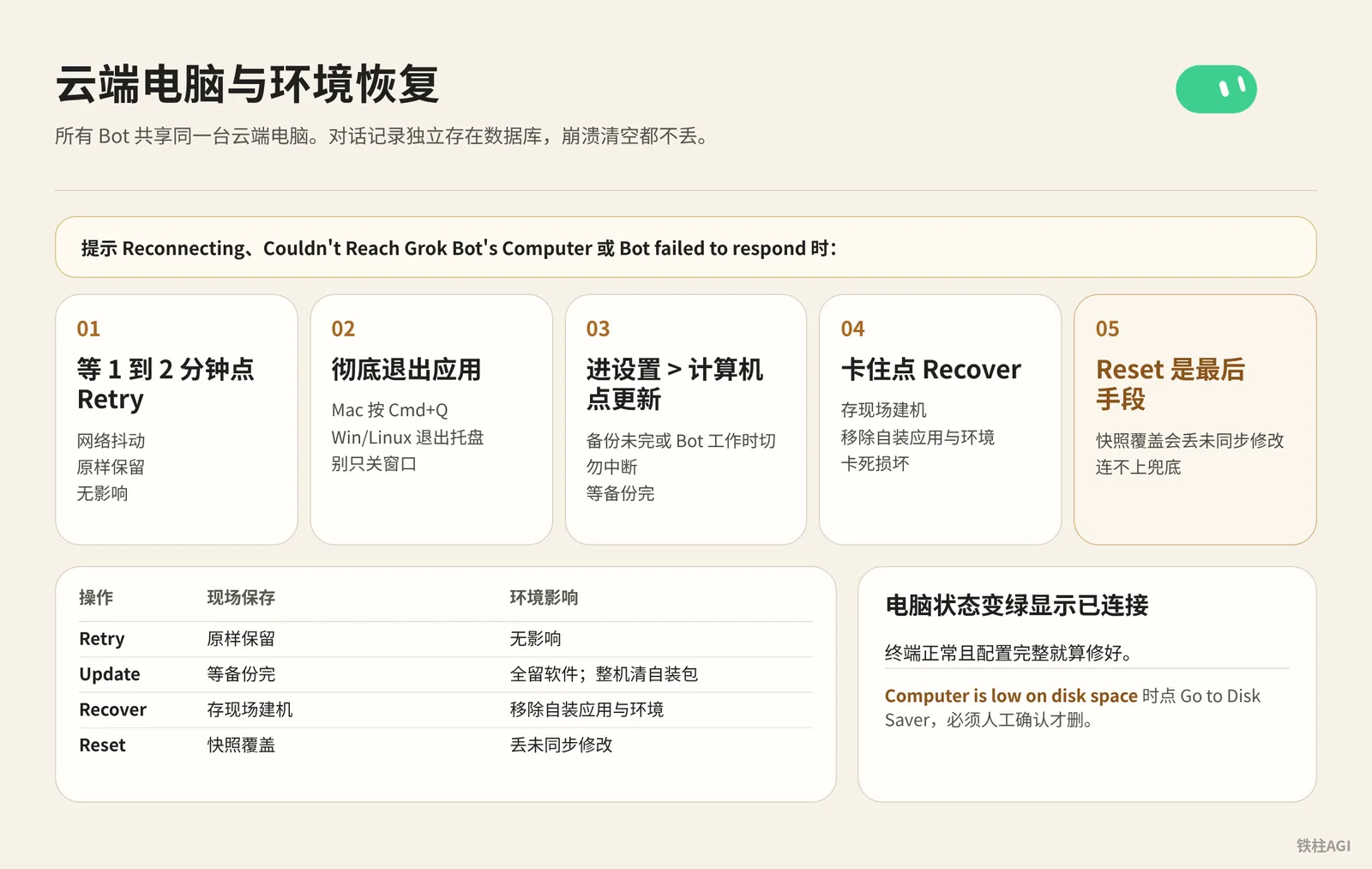
All Bots share the same cloud computer. Conversation history is stored independently in a database, so it will not be lost even during crashes or wipes.
When prompted with Reconnecting, Couldn't Reach Grok Bot's Computer, or Bot failed to respond:
- Wait 1 to 2 minutes and click Retry.
- Completely quit the application. Press
Cmd+Qon Mac, or exit from the system tray on Win/Linux; do not just close the window. - Go to Settings > Computer and click Update. Never interrupt while backup is incomplete or Bot is working.
- If frozen, click Recover.
- Reset is a last resort. Snapshot overwrite will lose unsynced changes. For details, see Grok Bot Computer.
| Operation | State Preservation | Environment Impact | Scenario |
|---|---|---|---|
| Retry | Preserved as-is | No impact | Network jitter |
| Update | Wait for backup to complete | Retains all software; clears self-installed packages across machine | Official patches |
| Recover | Preserves state and rebuilds instance | Removes self-installed applications and environments | Frozen or corrupted |
| Reset | Snapshot overwrite | Loses unsynced changes | Last resort for connection failure |
When the computer status turns green and displays Connected, the terminal is functioning normally, and configuration is complete, the issue is considered resolved.
- When encountering SSO sign-in, click Take over on the card to authenticate manually, then click I'm done once finished.
- Security keys & network: In Settings > General > Security Key, enable Use hardware security keys and plug in your YubiKey; if encountering captchas, check "Route traffic through this computer" in Settings > Computer.
- Local execution: In Settings > Computer, enable "Execute on this computer" (confirm before running commands). For details, see Grok Bot Settings.
- Disk warning: When prompted with Computer is low on disk space, click Go to Disk Saver; deletion must be manually confirmed.
请检查当前云端计算机根目录与工作目录的磁盘占用情况,找出体积超过 200MB 的文件与缓存目录,列出清单供我确认,不要擅自执行任何删除命令。How to troubleshoot when Grok Bot automated routines fail to trigger?
If a routine has no activity, first verify that its status is not paused, check the timezone, and test with Test. Webhooks require an authentication key and a 200 response only indicates enqueuing. Slack triggers must restrict channel whitelists and filter keywords.
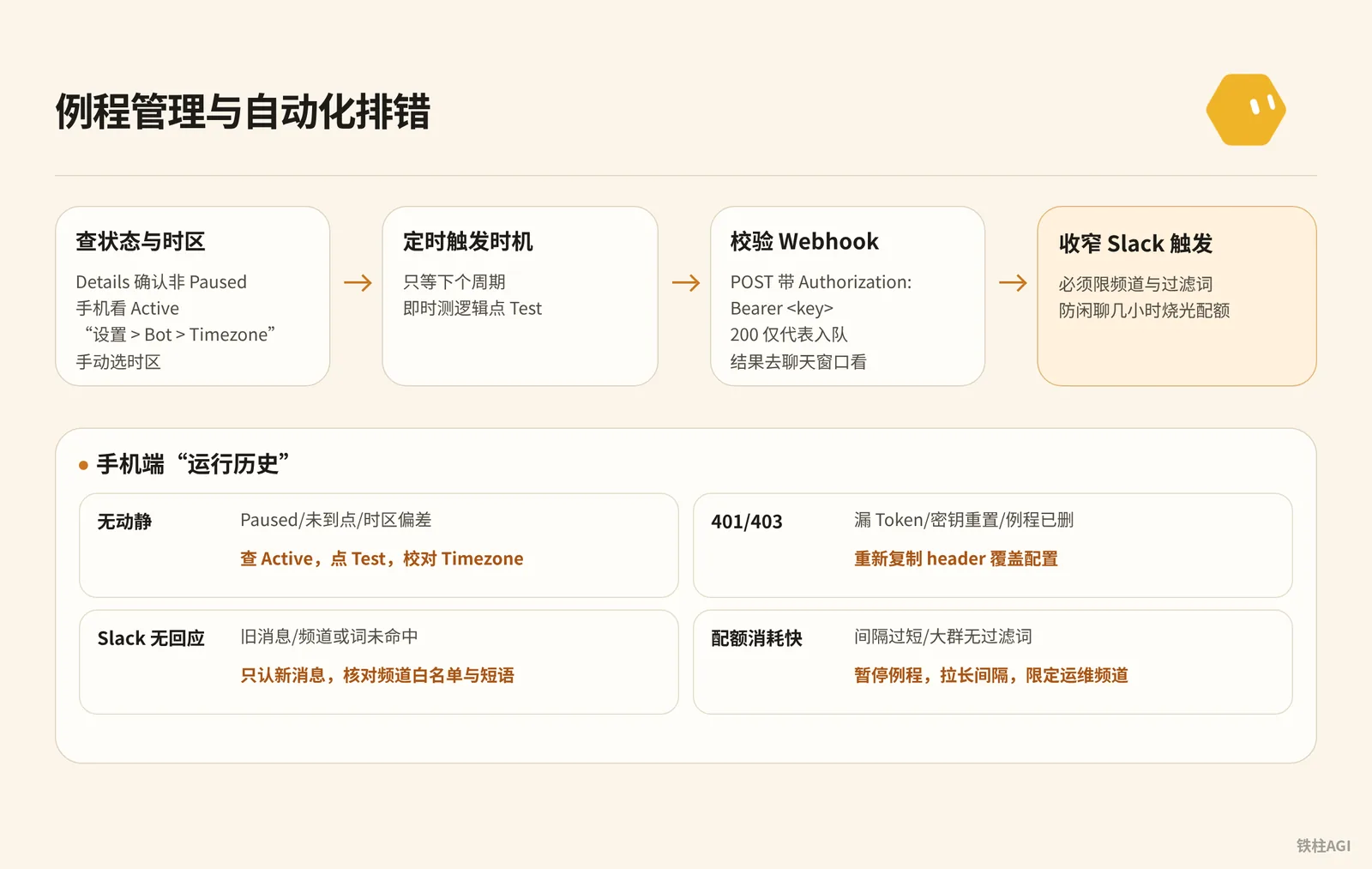
Routines run automatically in the cloud and remain active even when powered off, supporting scheduled runs, Webhooks, and Slack push notifications.
- Check status and timezone: In Details, confirm it is not Paused (check Active on mobile); manually select the timezone in "Settings > Bot > Timezone", and avoid using Auto-detect across different countries.
- Scheduled trigger timing: It only waits for the next cycle (setting 09:00 at 09:05 means it runs tomorrow morning); click Test to immediately test the logic.
- Verify Webhook: POST with
Authorization: Bearer <key>. A 200 response only means enqueued; check results in the chat window. Non-200 indicates invalid keys or paused routines. - Narrow Slack triggers: Must restrict channels and filter keywords to prevent casual chatter from burning through quota in hours. For details, see Routines.
Check Running, Succeeded, and Failed in "Run History" on mobile; displaying No runs yet means it has not been triggered.
| Failure | Cause | Fix |
|---|---|---|
| No activity | Paused / time not reached / timezone offset | Check Active, click Test, verify Timezone |
| 401/403 | Missing Token / key reset / routine deleted | Re-copy the header and overwrite the configuration |
| Slack no response | Old messages / channel or keyword mismatch | Only recognizes new messages; check channel whitelist and phrases |
| Rapid quota consumption | Interval too short / large group lacks filter keywords | Pause routine, lengthen interval, restrict to ops channels |
Prompt for creating and modifying automated routines:
请修改名为“工单同步”的例程:仅在 #ops-alert 频道出现包含“[P0-Error]”文字的新消息时才触发,忽略其他日常聊天,并列出更新后的 When to run 描述。Usage Anomalies and Quota Control
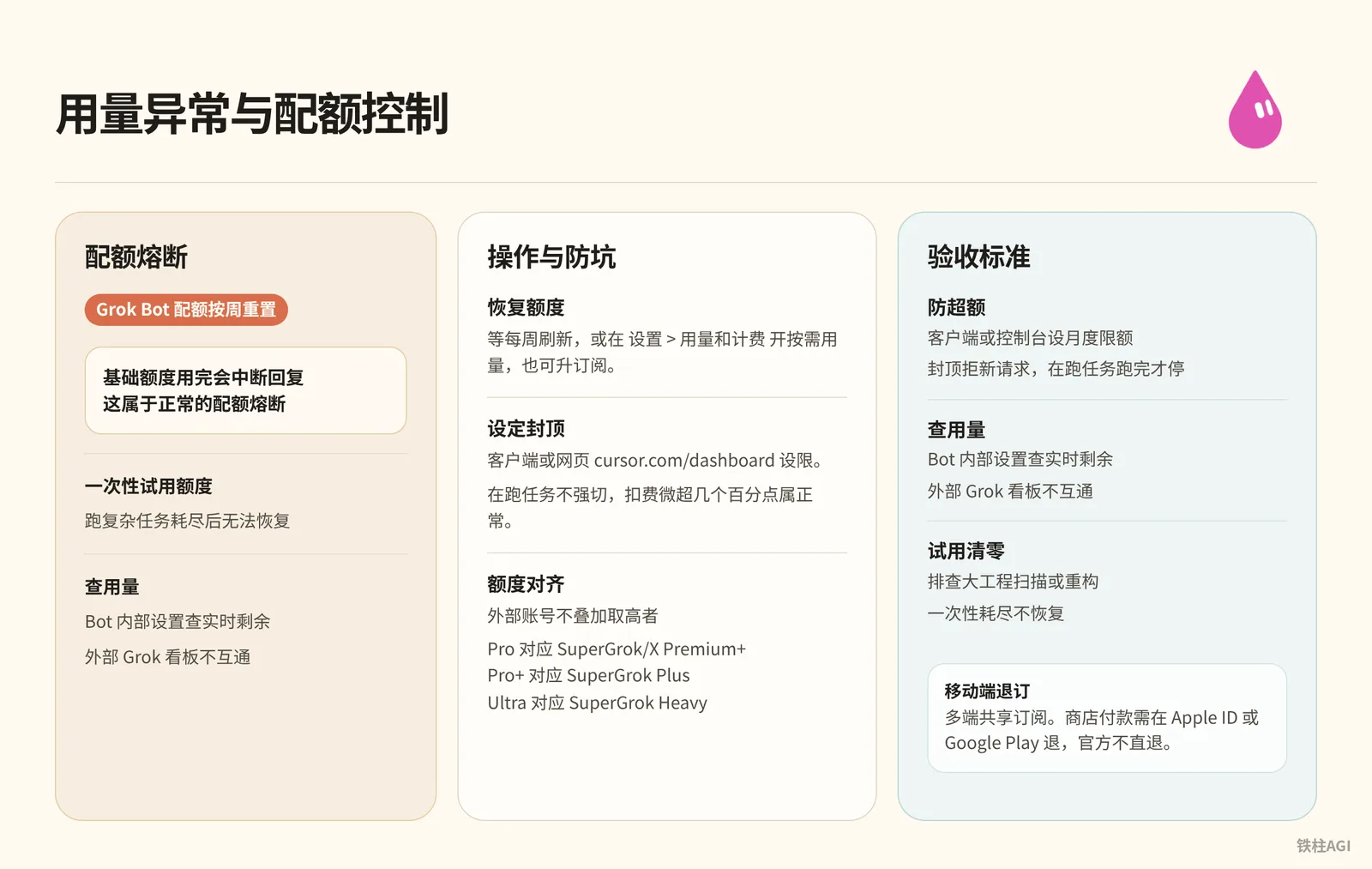
Grok Bot quota resets weekly. When the base quota is exhausted, responses will be interrupted; this is a normal quota circuit break. Once one-time trial quotas are exhausted running complex tasks, they cannot be restored.
Operations and Pitfalls
- Restore quota: Wait for the weekly refresh, or enable on-demand usage in Settings > Usage and Billing, or upgrade your subscription.
- Set spending limit: Set limits in the client or web portal at cursor.com/dashboard. Running tasks will not be abruptly cut off; billing slightly exceeding by a few percentage points is normal.
- Quota alignment: External accounts do not stack and take the higher tier (Pro corresponds to SuperGrok/X Premium+, Pro+ corresponds to SuperGrok Plus, Ultra corresponds to SuperGrok Heavy).
- Mobile cancellation: Subscriptions are shared across multiple platforms. Store payments must be cancelled in Apple ID or Google Play; the official team does not issue direct refunds. See Plans and Billing.
Acceptance Criteria
| Scenario | Operation | Boundaries and Pitfalls |
|---|---|---|
| Preventing overage | Set monthly limit in client or console | Cap rejects new requests; running tasks stop only after completing |
| Check usage | Check real-time remaining in Bot internal settings | Not synced with external Grok dashboards |
| Trial wiped out | Investigate large project scans or refactoring | Exhausted one-time quota will not be restored |
请列出你当前账号下所有处于活跃状态的例程,评估它们各自的执行频率与触发条件,指出哪一个例程最容易引发高额用量消耗。Group Chat, Collaboration, and Auxiliary Bot Governance
Auxiliary Bots will appear in the sidebar and pop up notifications; modifying files or connecting to external networks will trigger Auto-review approval.
Operations and Approvals
Noise reduction and hiding: On desktop, right-click and select Hide from sidebar or send a command to turn off notifications; on mobile, go to configuration to disable notifications.
Restore accidental hiding: On desktop, select Show in sidebar under Hidden Bots; on mobile, select Unhide. Never click Recover or Reset on the cloud computer just to find a Bot.
Approvals and whitelists: For high-frequency operations, click Always Allow (stored in Settings > Bot > Custom Rules); in case of conflicts, ask first; items displaying "Mandated by administrator" cannot be bypassed.
For standards, see Grok Bot User Guide.
Acceptance Criteria
Sidebar is free of cluttered Bots, and routine high-frequency operations are automatically approved without disruption.
| Scenario | Timeout | Behavior | Countermeasure |
|---|---|---|---|
| Foreground human | Wait indefinitely | Suspended continuously | Verify and then allow or reject |
| Background / Webhook | Approx. 10 minutes | Becomes Expired and canceled | Configure "Always Allow" or enable notifications |
| Admin mandated | Depends on scenario | Cannot bypass | Human authorization required |
请梳理我们在此会话中频繁执行的文件读取与构建指令,为它们生成一组最小权限的安全规则建议,以便我添加到 Auto-review 的自定义白名单中。Plugins and External App Connections
Authorization Troubleshooting
Added only means installed, not signed in. If the card doesn't pop up, go to the sidebar for manual verification. Authorization must be completed within 10 minutes; click Reopen if timed out. If errors persist, click Remove to delete and reinstall.
| Status | Action |
|---|---|
| Added / Needs auth | Click "Authenticate" to sign in via browser |
| Connected error | Send a command containing the plugin name to refresh the session |
| Disabled by team admin | Contact team administrator to unblock |
Multi-Account and Acceptance
- Multi-account: In "Connected Apps" > Plugin > Accounts, click Add Another Account (on mobile, tap Authorize new account) and apply a label. Specify the label in conversation to call it; if there is no button, only a single account is supported.
- Acceptance: Status shows green Connected with clear labels, and issuing a command invokes it accurately on the first attempt.
For details, see Connect Apps.
请刷新当前已连接的插件列表,使用带有“工作”标签的账户连接,读取最近更新的 3 个页面,确认授权是否正常。Account Deletion and Data Cleanup
Grok Bot shares the Cursor account. Account deletion is irreversible, and Cursor cannot be retained separately. To switch computers, simply log out or uninstall.
Account Deletion Steps by Client
Be sure to cancel auto-renewal before deleting the account to avoid billing disputes.
- Mobile (iOS/Android): Tap your avatar to go to "Settings" > Account Info > "Delete Account", and type "Delete" in the web verification to confirm.
- Desktop and Web: Cannot delete directly in the client. Log in to cursor.com/dashboard > "Settings" > "More" > "Delete Account" to confirm.
- Enterprise or team seats: Individuals cannot delete accounts independently; you must contact the administrator to unlink or submit a ticket. For terms, see Delete Your Grok Bot Account.
Asset Cleanup and Pitfalls
| Assets & Subscriptions | Outcome | Mandatory Action |
|---|---|---|
| Cloud conversations & environments | Physically erased within 30 days, snapshots destroyed | Export code and conversations in advance, download files |
| Local files | Intact | No action needed |
| App Store and X standalone subscriptions | Will not be canceled automatically | Must manually unsubscribe via Apple, Google, or x.ai |
Getting Official Support and Ticket Guidelines
What to Do
When local troubleshooting doesn't work, send an email to hi@cursor.com. Never just send vague descriptions like "My Bot is broken"; include all six items in your email.
- Account credentials: Registered email.
- Runtime environment: Platform and client version number. From Account Menu > Support > About, click Copy version info to copy.
- Intended action: Explain what task you intended to run before the failure.
- Actual error evidence: Complete error pop-up, console error, or billing screenshot.
- Troubleshooting history: Detail what troubleshooting steps you have taken to avoid duplicate suggestions from support.
- Request ID: Right-click the error message or hover and click More message actions, then select Copy request ID. If this option is unavailable, you must attach the raw error text and full-screen screenshots.
On Linux, if prompted with Update required and auto-update fails, run the update command in the terminal according to your distribution:
- Debian / Ubuntu:
sudo apt update && sudo apt install --only-upgrade grok-bot - Fedora / RPM series:
sudo dnf upgrade --refresh grok-bot
How to do it
收件人:hi@cursor.com
主题:【Grok Bot 故障申报】云端电脑持续重连且 Recover 失败 - [你的账号邮箱]

支持团队:
我的账号遇到了云端电脑无法连通的故障,无法正常执行任务,以下是详细环境与排查信息:

1. 账号邮箱:developer@example.com
2. 版本信息:Version 1.2.4 (Channel: stable, OS: Darwin x64 23.4.0)
3. 故障发生场景:我尝试让 Bot 运行自动化部署脚本,终端在拉取镜像时中断。
4. 核心报错信息:界面持续提示“Couldn't Reach Grok Bot's Computer”,伴随“Bot failed to respond”。
5. 已尝试的排错操作:
   - 已彻底 Quit 应用并重启;
   - 尝试在“设置 > 计算机”执行 Update,提示备份未就绪;
   - 尝试点击 Recover,重试一次后依然在进度条处卡住报错;
   - 查看 status.cursor.com 确认官方各项服务状态正常。
6. 请求 ID (Request ID):req_98af7c32e01b44d7a1
7. 附件:包含当前报错卡片截图及“设置 > 计算机”面板状态截图。

请协助在后台检查该实例的宿主节点状态,谢谢。
What Constitutes Success
An automated receipt is received after sending, and support engineers can pull logs without follow-up questions. For detailed specifications, see Get Help.
Typical Troubleshooting Cases
Case 1: Cloud Computer Reconnecting Loop
When alerted with Couldn't Reach Grok Bot's Computer, never click the destructive Reset first.
- Visit status.cursor.com to confirm services are running normally, and press
Cmd+Qto restart the application. - Go to Settings > Computer; if the prompt has not paused in time, wait about 5 minutes for the backend to time out.
- Once Recover Computer becomes active, click recover and re-run the installation script to preserve historical scripts and login state.
Case 2: Slack Trigger Quota Avalanche
Due to listening to all casual chatter in #general with over 3,000 members, the weekly quota was wiped out within 24 hours.
- First, set a hard monthly on-demand limit in the spending dashboard to prevent credit card charges.
- Switch the routine to Paused to stem the bleeding.
- Narrow the rule to "only trigger in
#bot-helpwhen mentioned with@Grok". - Click Test to verify a single run before bringing it back online.
Case 3: Notion Authentication Failure and Takeover Sign-In
When Notion reports Action needed and is blocked by Okta SSO, you must use Take over to complete authentication within the built-in browser.
- Upon seeing the Needs auth prompt, click Take over on the card to take control.
- Enter your employee ID and complete two-factor authentication in the cloud built-in browser, then click I'm done.
- In Accounts, click Add Another Account to authorize personal workspaces, tagging it with "Personal Library" to prevent credential conflicts.
Common Pitfalls
- If you lose chats, do not click Reset, as it wipes code. To recover, first quit and restart, verify the Cursor account, or check hidden bots.
- Setting a 14:00 routine at 14:05 will only run the next day; click Test to test logic.
- Listening to large Slack channels without trigger words will burn through the entire weekly quota just from casual greetings.
- Deleting the app will still incur charges; to unsubscribe, cancel in the Apple ID or Google Play subscription center.
- Clicking Reset while Updating will corrupt the file system, requiring manual support.
- When a plugin is Added, make sure it shows Connected; showing Needs auth requires browser authorization.
- Updates, Recover, or Reset will clear
node_modulesand.venv; write dependencies into the initialization script. - Approval cards terminate with Expired after 10 minutes; remember to turn on notifications or set "Always Allow".
Verification and Acceptance
- Verify status.cursor.com shows no outages and your email is correct.
- Check Settings > Computer for a green light, and send basic Linux commands to the Bot to test responses.
- Keep routines active, verify the When to run timezone, and click Test to ensure successful runs.
- Go to Settings > Usage and Billing; you must set a monthly on-demand usage limit to prevent surprise bills.
- Connected apps display Connected; write operations prompt Auto-review and push notifications to mobile.
- Keep only Request ID and Copy version info in support tickets; never leak the Bearer Token request header.
Further Reading
- Related Chapter: Chapter 5 Shared Cloud Computer: Files, Browsers, and Takeover
- Related Chapter: Chapter 10 Quota and Cost: Making a Week's Quota Last a Full Week
- Grok Bot FAQ Official Answers
- Grok Bot How-to and Troubleshooting Guide
- Grok Bot Computer Environment Management and Disaster Recovery
- Automated Routines and Trigger Configuration
- Account System and Deletion Instructions
- Support Team Contact and Ticket Standards
- Grok Bot Global System Settings Reference