Chapter 2 Plans and Subscriptions: Choosing the Right Tier First
You can pay directly with Alipay now. When subscribing to X or Grok on the web, selecting Mainland China, Hong Kong, Macao, or Taiwan as your billing region allows you to choose Alipay or UnionPay as payment methods, charged in RMB converted from the USD price (both share this payment system). There is currently no official announcement, and some accounts may still be part of a gradual rollout; please refer to the real-time display on the checkout page for actual availability.
Beginners often run into three pitfalls when purchasing:
- Buying the cheapest entry-level plan, only to open the client and find no agent entry point.
- Cursor subscriptions and SuperGrok weekly quotas do not stack; the system only recognizes the higher one.
- Clicking upgrade in the mobile app fails to switch, and you also lose your existing third-party model quota.
Grok Bot relies on quotas to run. If your weekly quota is exhausted and on-demand protection is not configured, cloud automation tasks will stop immediately.
Starting October 12, 2026, the official unified subscription—The X Subscription—was introduced, divided into a free tier and four paid tiers.
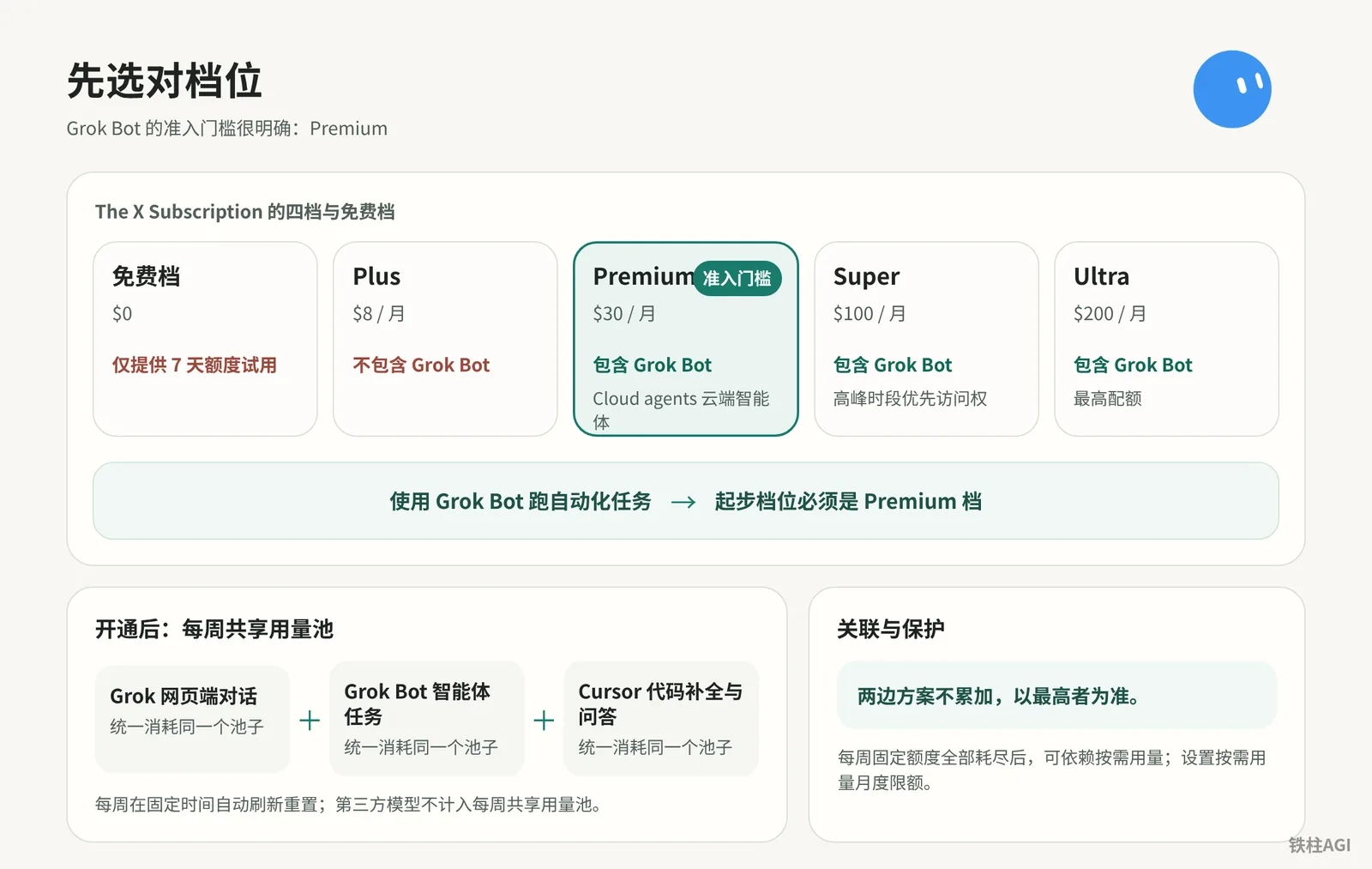
Which Subscription Plan Do You Need to Use Grok Bot?
The unified subscription is divided into four tiers: Plus, Premium, Super, and Ultra. Because the Plus tier does not include Grok Bot at all, you must start with the $30/month Premium tier to run automation tasks.
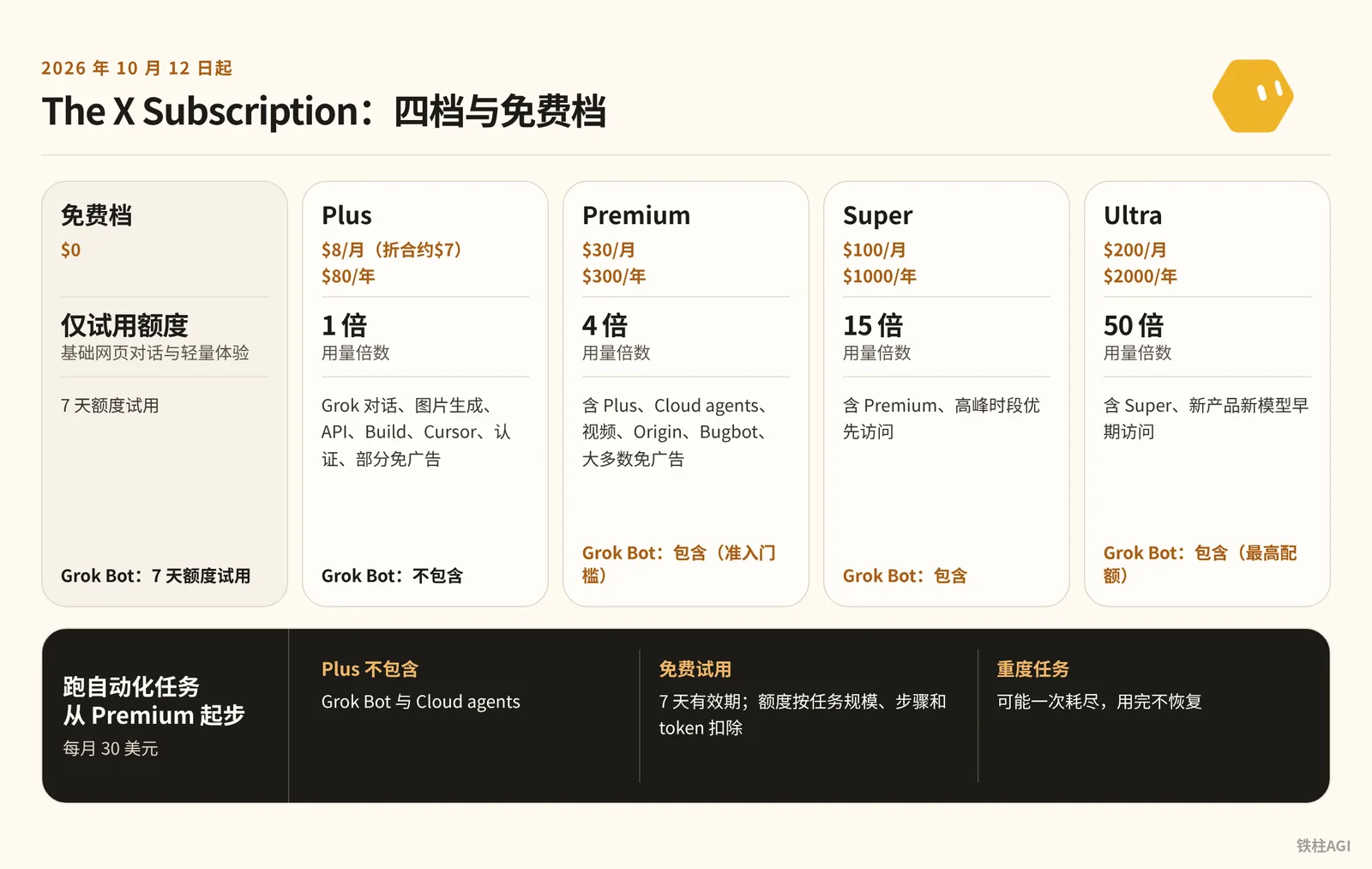
What It Is
Consolidated into The X Subscription starting October 12, 2026, with annual billing priced at 10x the monthly rate.
Calculated by usage per dollar (Plus as baseline 1, Premium ~1.07, Super ~1.2, Ultra ~2.0; author's self-report, unverified), the higher the tier, the more cost-effective the in-house models are.
| Plan | Web Monthly / Annual | Grok Bot |
|---|---|---|
| Free Tier | $0 | 7-day quota trial |
| Plus | $8/mo (~$7 discounted) / $80/yr | Not included |
| Premium | $30/mo / $300/yr | Included (entry threshold) |
| Super | $100/mo / $1000/yr | Included |
| Ultra | $200/mo / $2000/yr | Included (highest quota) |
The Plus tier does not include Grok Bot or Cloud agents at all. To run automation tasks, you must start with the $30/month Premium tier. The free trial is limited to a 7-day validity period, with quota deducted based on task scale, steps, and tokens; heavy tasks may exhaust it in a single run, and it does not replenish once used up.
What to Do
It is recommended to subscribe via the web interface to avoid paying on mobile.
- Open a browser and visit the unified subscription page at grok.com/com/overlay/subscribe.
- Log in with your work X or Grok account.
- Select the Premium tier ($30/month; the community previously saw a 50% off first month $15 promotion; subject to the checkout page).
- Choose monthly billing instead of annual billing right away, making it easier to change tiers or tools at any time.
- Pay using supported international credit cards, debit cards, or web Apple Pay and Google Pay; if you select Mainland China, Hong Kong, Macao, or Taiwan as your billing region, Alipay and UnionPay payment options will also appear on the checkout page.
- Open the Grok Bot client, log in, and verify that the main interface has unlocked agent creation and execution permissions.
For detailed analysis, see Unified X Subscription Explained: How New Users Should Choose, and Should Existing Subscribers Switch? Explained in One Article and Tiezhu's Post Collection ①: Activation, Plans, and Quotas.
What Good Looks Like
Open the Grok Bot desktop client; you pass if creating a new task successfully allocates a cloud environment for execution, and your billing shows an active monthly-billed Premium status.
How Is the Grok Bot Weekly Usage Pool Settled?
The subscription provides a fixed weekly quota pool synchronized across multiple devices in real time. Official models are shared and deducted across the web client, Bot, and Cursor completions based on task volume and steps, while third-party models are billed separately according to their listed prices.
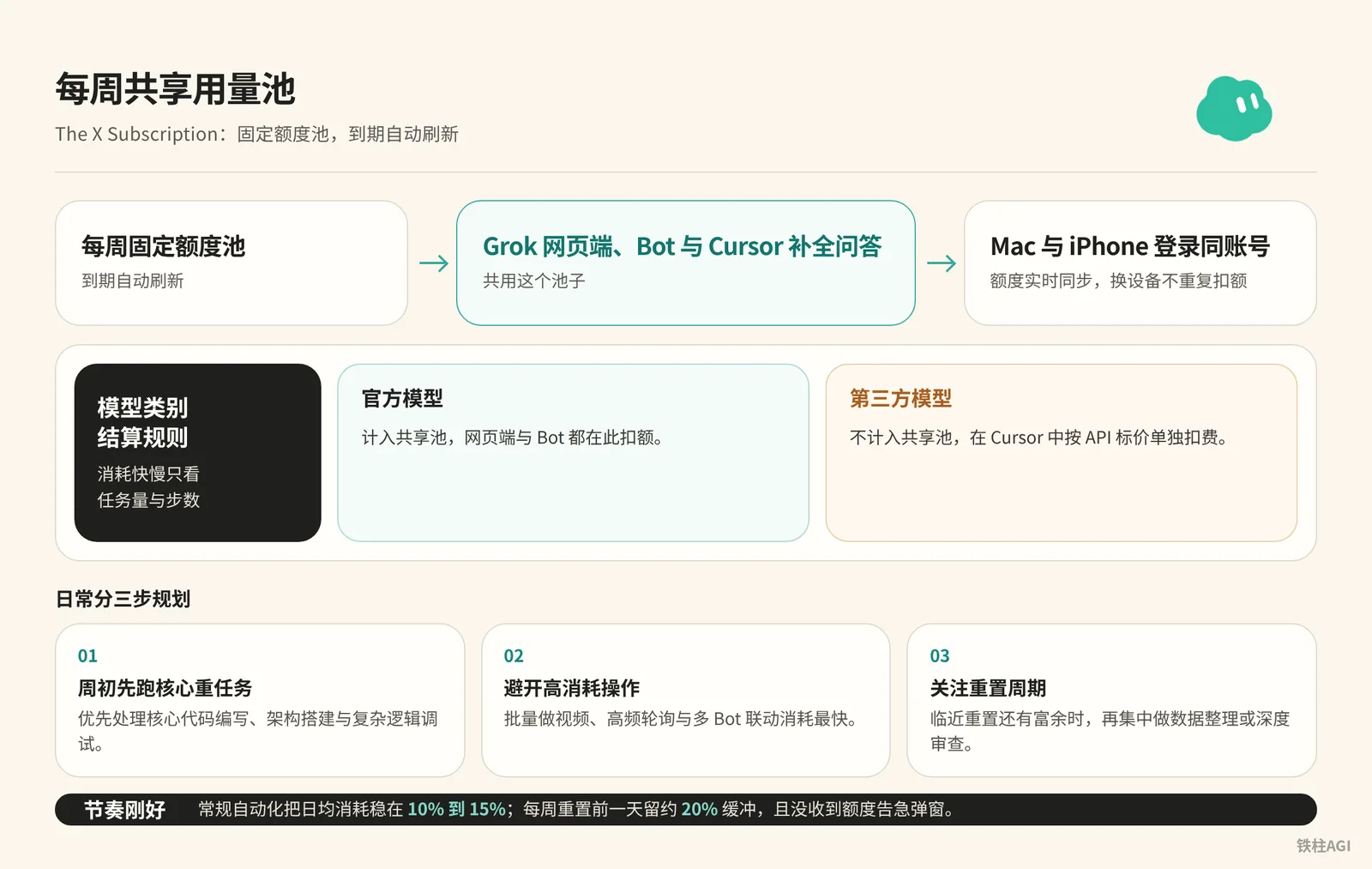
What It Is
The X Subscription provides a fixed weekly quota pool that automatically refreshes upon expiration. The Grok web app, Bot, and Cursor completion/Q&A share this pool. Quotas sync in real time when logged into the same account on Mac and iPhone, without double deductions across devices.
| Model Category | Billing Rules |
|---|---|
| Official Models | Counted toward the shared pool; both the web app and Bot deduct from here. Consumption speed depends solely on task volume and steps. |
| Third-Party Models | Not counted toward the shared pool; billed separately in Cursor based on API list prices. |
The system automatically assigns the underlying model for Bot, uniformly labeled as "Grok Bot usage", which cannot be manually selected or disabled. For details, see Grok Bot Models.
What to Do
To avoid burning through your quota in the first three days, follow a three-step daily planning approach:
- Run core heavy tasks early in the week. Prioritize core code authoring, architecture design, and complex logic debugging.
- Avoid high-consumption operations. Batch video generation, high-frequency polling, and multi-Bot coordination consume quotas the fastest (author's self-report, unverified); video generation is best done on the web app rather than inside Bot workflows.
- Keep an eye on the reset cycle. Note the weekly reset day shown on the dashboard; when nearing the reset with remaining quota, concentrate on data organization or in-depth reviews.
What Good Looks Like
Keep daily consumption for routine automation steady at 10% to 15%. Leaving about a 20% buffer the day before the weekly reset and receiving no low-quota popups means your pacing is on track.
How to Link Cursor with Grok Shared Quota?
Cursor can directly link to a Grok account to map quotas. Linking does not alter your existing plan and incurs no extra charges. Quotas take effect based on the higher tier between the two without stacking, and once paired, they are permanently locked and cannot be unlinked or transferred.
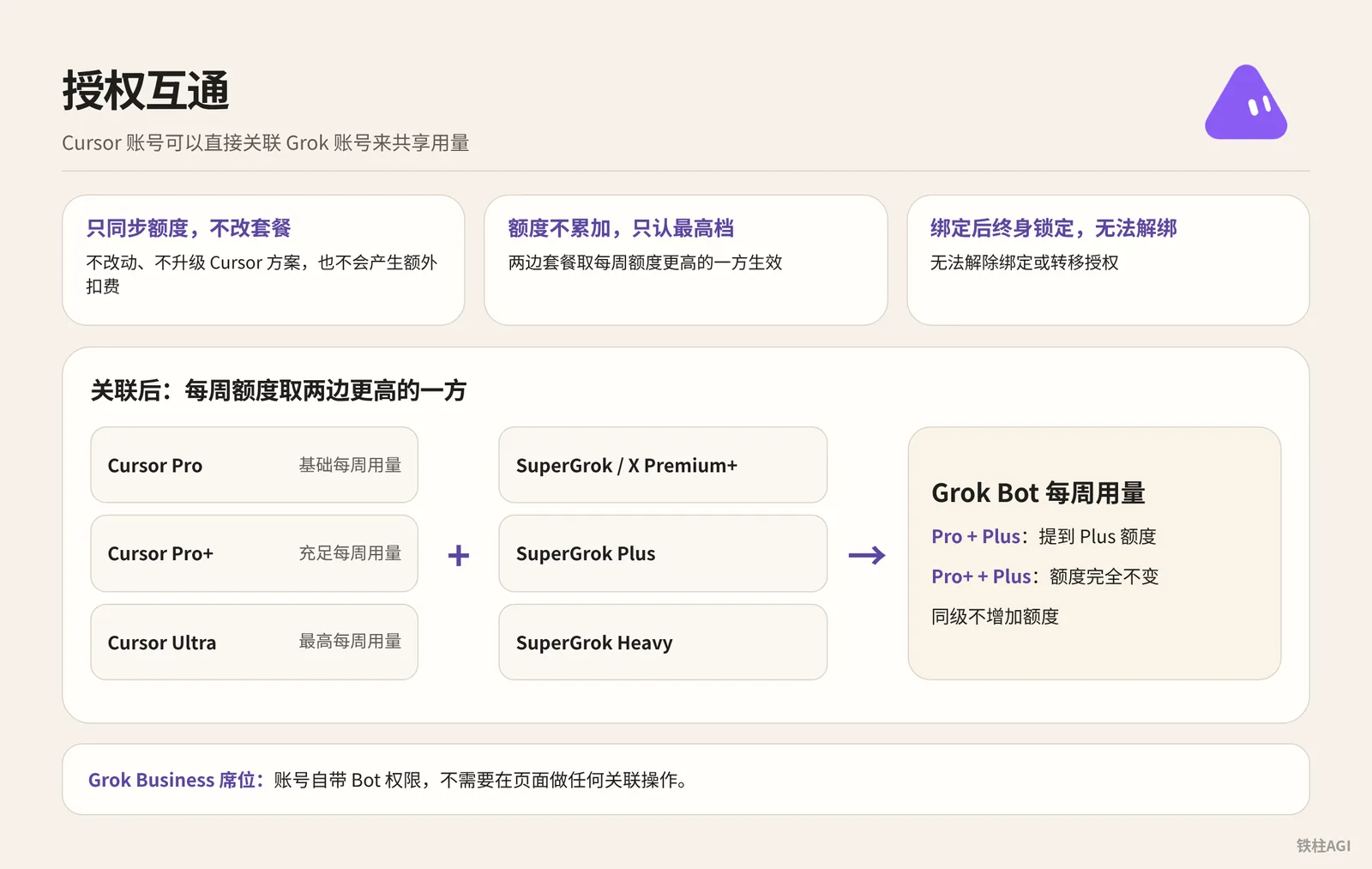
What It Is
A Cursor account can directly link to a Grok account to share usage. Be sure to understand these three hard rules before linking:
- Only syncs quotas, does not change plans: Usage is mapped directly without altering the current Cursor plan and incurs no extra charges.
- Quotas do not stack, only the higher tier applies: The higher weekly quota between the two takes effect; for example, linking Cursor Pro with SuperGrok Plus upgrades you to Plus quota.
- Permanently locked after linking, cannot be unlinked: Once successfully paired, it cannot be unlinked or transferred, whether through self-service or by contacting support.
| Cursor Subscription Tier | Equivalent Linked Tier | Grok Bot Weekly Usage |
|---|---|---|
| Cursor Pro | SuperGrok / X Premium+ | Basic weekly usage |
| Cursor Pro+ | SuperGrok Plus | Ample weekly usage |
| Cursor Ultra | SuperGrok Heavy | Maximum weekly usage |
| No Cursor Plan | SuperGrok Lite | Grok Bot not provided (Lite tier lacks permissions; upgrade required before linking) |
If you are assigned a Grok Business enterprise seat, the account comes with Bot permissions natively—no linking actions on the page are required.
What to Do
Personal account linking is completed on the web:
- In a browser, log in to the Grok Bot web app using the Cursor account intended to receive the quota, confirming the primary account is correct.
- Open the quick onboarding portal at cursor.com/bot/onboarding.
- Click "Link Grok Account" (on mobile, tap the button with the same name on the subscription page).
- After redirecting, log in to the account holding SuperGrok, SuperGrok Plus, SuperGrok Heavy, or X Premium+ to authorize.
- Return to the client settings page to verify the status. The new quota may take up to 24 hours to sync; do not repeatedly click link or attempt to unlink during this period.
For complete rules, see the official documentation Link SuperGrok to Grok Bot.
Users assigned an enterprise seat can log in directly without additional linking:
- On desktop, open Settings > General and click Sign Out to log out of the current account (repeat on mobile).
- Return to the login page and click "Sign in with Grok".
- Enter the credentials for the Grok account with the assigned Business seat to log in; the system will automatically attach the quota for that seat.
What Good Looks Like
Open Settings > Usage & Billing on the desktop client.
Linking is successful when the corresponding linked tier badge is displayed beneath Manage Plan, the weekly quota bar shows the reset cycle, and there are no duplicate charges on your account.
Team Seats and On-demand Configuration
What It Is
Team members log in to Grok Bot directly with their own Cursor accounts, and usage draws from the team quota. Admins do not need to assign individual seats, and members require no approval.
Once the weekly quota is exhausted, it automatically falls back to on-demand usage (billing displays "Billed through Cursor"). The system includes a protection mechanism: tasks that exceed the monthly limit will not be cut off midway, allowing the ongoing task to finish completely.
What to Do
- In the client, open Settings > Usage & Billing.
- Locate "Monthly On-demand Limit"; if it displays Disabled, click Enable on the right to turn it on.
- Initial setup requires binding a credit card; go to cursor.com/dashboard and click Spending.
- Enter your monthly spending cap under Monthly Limit (e.g., set $20 or $50 to prevent overspending) and save.
The limit cannot be configured directly in the iOS and Android mobile apps; you must log in to the web console. For detailed billing information, see the official documentation Plans and Billing.
What Good Looks Like
On-demand usage is shown as enabled in Usage & Billing with your configured limit value displayed. When weekly quotas are depleted, tasks do not fail or terminate unexpectedly, smoothly transitioning to the on-demand channel to finish running.
Legacy Subscription Migration Decision and Action Guide
What It Is
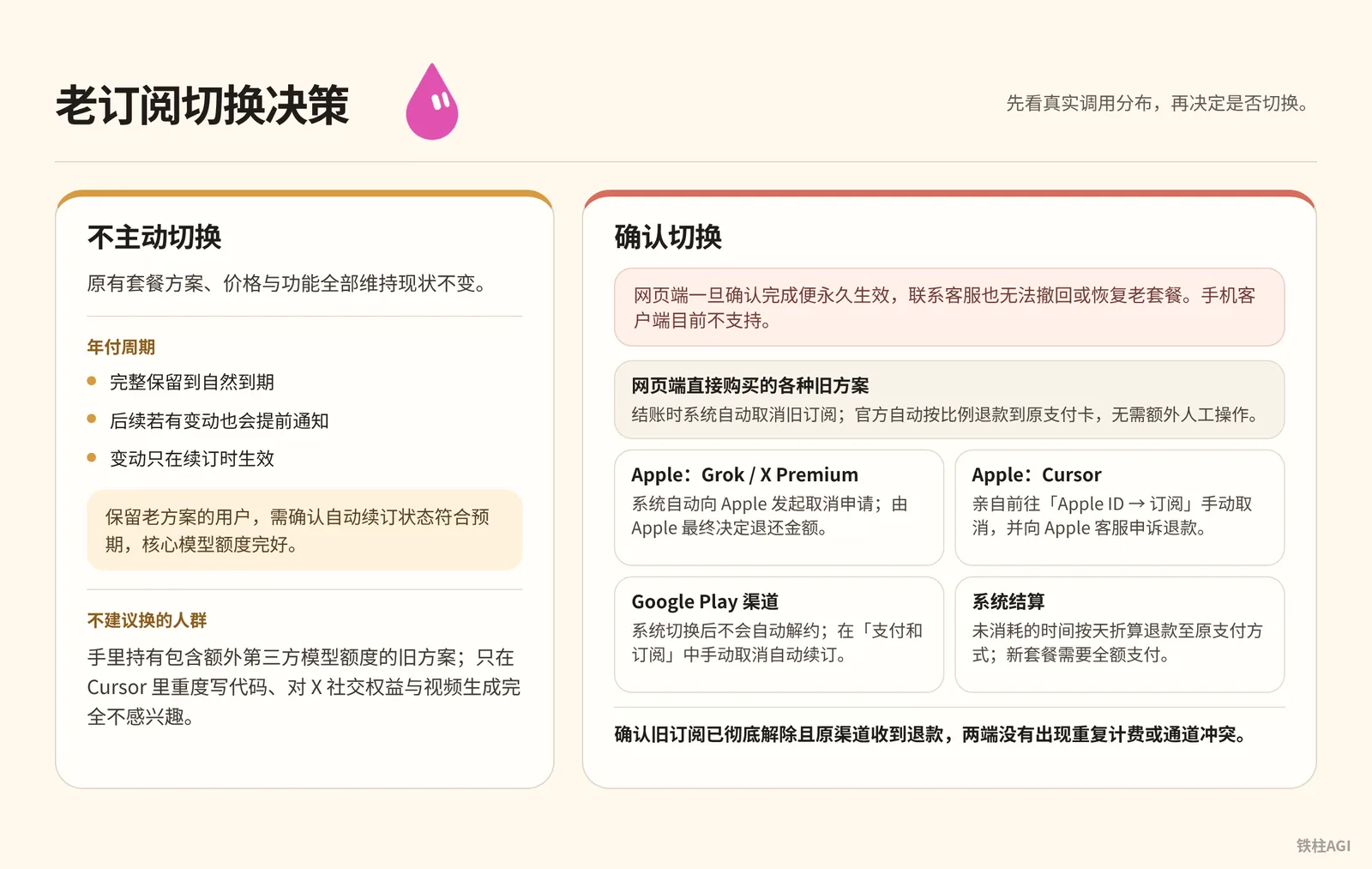
The unified The X Subscription launched on October 12, 2026. For users who do not proactively migrate, existing plans, pricing, and features remain unchanged. Annual billing cycles are preserved in full until natural expiration; any subsequent adjustments will only take effect upon renewal.
Once confirmed on the web, the operation is permanent; contacting support will not revert or restore legacy plans. The old subscription automatically terminates upon settlement and is refunded prorated by day. Refunds cannot be credited against the new plan, which must be paid in full, and the billing cycle resets from that day. Mobile clients currently do not support migration; it must be performed on the web.
| Payment Channel & Subscription Product | Refund Path & User Action |
|---|---|
| Legacy plans purchased directly on the web | Automatically refunded prorated to the original payment card by the official system, requiring no manual action. |
| Grok / X Premium subscribed via Apple | The official team assists in submitting the request; Apple makes the final refund decision. |
| Cursor subscribed via Apple | Users must personally go to "Apple ID → Subscriptions" in iOS to cancel manually and request a refund from Apple Support. |
| Services subscribed via Google Play | Users must manually cancel auto-renewal in "Payments & subscriptions" on Google Play. |
Practical Case: A Community Author's Decision Record on the Unified Subscription
A community developer holding an annual plan valid until 2027 (author's self-report, unverified) reviewed their usage and decided not to migrate their legacy subscription to the new unified subscription for now, while disabling auto-renewal on the original plan to adopt a wait-and-see approach.
The legacy plan includes long-term discounts that are permanently forfeited upon migrating. The new plan's weekly shared pool covers only in-house models, requiring all third-party model calls to be paid separately based on API list prices. Furthermore, the weekly quota pool in the new plan is shared across products, meaning running Bot excessively will eat into the regular quota for web use and code completion.
| User Segment | Typical Profile & Core Needs |
|---|---|
| Recommended to Switch | Paying for multiple fragmented subscriptions totaling well over $30/month, primarily using official models, with strong bundled demands for Grok Bot automation and X account operations. |
| Not Recommended to Switch | Holding legacy plans with extra third-party model quotas, or using Cursor heavily solely for coding with no need for X social perks or video generation. |
Before switching, open the usage dashboard to examine the actual distribution of calls and determine the ratio between in-house and third-party models. Subscribe to AI tools monthly whenever possible; plan policies frequently reorganize every two or three months, and locking into a long-term annual commitment can easily put you at a disadvantage (author's self-report, unverified).
Users who subscribed to Cursor through Apple must manually cancel auto-renewal in iOS settings after deciding to migrate; upgrading on the web will not handle this for you.
For detailed decision analysis, see Unified X Subscription Explained: How New Users Should Choose, and Should Existing Subscribers Switch? Explained in One Article and Tiezhu's Post Collection ①: Activation, Plans, and Quotas.
What Good Looks Like
Users keeping legacy plans must verify that auto-renewal status aligns with expectations and core model quotas remain intact.
Users deciding to switch to the new plan must confirm that the old subscription has been completely terminated with a refund received on the original payment method, the new plan is billed normally as Premium, and there are no duplicate charges or channel conflicts between the two sides.
Usage Monitoring and Loss-Prevention Prompt Configuration
What It Is
Understand the terminology mapping across both sides first to avoid depleting your quota unknowingly.
- Weekly Usage Limit (Desktop) / Weekly Usage (Mobile): The fixed weekly pool that resets every week. Showing SuperGrok link indicates authorized linkage, excluding standalone Cursor plans.
- On-demand Usage (Billed through Cursor): Additional billing after the fixed pool is exhausted. The web monthly limit is configured under Monthly Limit under Spending.
- Navigation paths: Open Settings > Usage & Billing on desktop, tap Weekly Usage on mobile, or log in to cursor.com/dashboard on the web.
What to Do
Inject loss-prevention instructions directly into the Bot system prompt or the first message.
For a standard single Bot, use the first block to lock in low-consumption reasoning and extend polling intervals, preventing idle background spin.
你是一个自动化执行助手。在后续所有任务执行中,必须严格遵守以下资源控制规则:
1. 任务规划阶段必须输出极简执行步骤,禁止发起非必要的递归搜索与多轮冗余工具自检。
2. 在处理代码与文本分析任务时,保持适度推理强度,优先给出核心结果,不要输出冗长无关的修饰性文字。
3. 如果任务涉及定时轮询或周期监控,单次轮询时间间隔不得低于 30 分钟,严禁设置分钟级高频循环。
4. 严禁自行尝试调用外部视频生成或音频转换能力;如遇复杂多步骤任务,分步向我汇报进度并等待确认。
For multi-Bot collaboration, use the second block. Frequent broadcasting among multiple Bots in the same task drains quota the fastest (author's self-report, unverified); point-to-point chained communication must be enforced.
你在多智能体协同流水线中担任协同节点。必须严格执行以下通信约束:
1. 全面采用点对点(Agent-to-Agent)单向派活与回传,禁止向群聊或未指名的公共上下文广播全量数据。
2. 传递工作流结果时,只提取关键字段与结构化结果摘要,严禁将完整的历史对话日志重复打包转发。
3. 协助任务交付完毕后,立即输出任务终止状态,主动退出协作监听,切断后续消息的被动接收与重复解析。
Strategy referenced from Tiezhu's Post Collection ①: Activation, Plans, and Quotas.
What Good Looks Like
After injecting the prompt, the Bot must explicitly reply and confirm adherence to the resource constraints. Running automation scripts for three consecutive days with a flat usage curve in Usage & Billing, scheduled tasks executing at hourly intervals, and no redundant self-check logs indicates you have met the benchmark.
Common Pitfalls
Purchasing and Subscriptions
- Do not buy the $8 Plus tier if you want to use Bot. It does not include Grok Bot or Cloud agents; you must choose the $30 Premium tier to use Bot.
- Cursor Pro and SuperGrok quotas do not stack. Subscribing to both will not grant double quota; the system only counts the higher one, which is a pure waste of money.
- Third-party models are billed separately based on API list prices. The X Subscription weekly shared pool only covers in-house models.
- Choose monthly billing, do not buy annual. Tools and policies change frequently, and annual billing locks away flexibility for future adjustments.
Linking and Cancellation
- Account linking is permanently irreversible. Once Cursor is linked to SuperGrok or X Premium+, support cannot unlink it; never authorize with a throwaway test account.
- Legacy subscription migration can only be performed on the desktop web interface; mobile apps have no entry point for switching.
- You must manually cancel Cursor renewal on your iPhone. Switching to the unified subscription on the web does not automatically stop App Store billing, and failing to cancel manually will result in duplicate charges on both sides.
Quotas and Usage
- Enable on-demand usage and set a monthly limit. If the weekly shared pool runs out without on-demand enabled, Bot will stop responding immediately.
- Use point-to-point communication for multi-Bot collaboration. Every group chat message broadcasts computation to all Bots, draining your weekly quota in just a few turns if added to persistent group chats.
How to Verify Completion
- Account Permissions: Open the desktop client and click the avatar in the lower-left corner to confirm the plan is Premium, Super, or Ultra. Click to create a new Bot, verifying that the configuration panel opens and Cloud agents displays as ready.
- Multi-device Quota: Note the weekly usage percentage under Settings > Usage & Billing on desktop, then open the mobile app to verify; the values on both sides must match exactly.
- Spending Protection: Visit the Spending page on cursor.com/dashboard in a browser, confirm that Monthly Limit has a dollar cap filled in, and verify that the on-demand channel in the client is in the Enable state.
- Actual Invocation: Send a prompt to have Bot run a brief task, check the logs to ensure there is no fluff and no unnecessary tool calls, and confirm you pass if usage registers a slight tick.
Further Reading
- Related chapter: What Is the Difference Between Grok and Grok Bot?
- Related chapter: Chapter 10 Quotas and Costs: Making One Week's Usage Last the Whole Week
- Related chapter: Chapter 25 Frequently Asked Questions and Troubleshooting
- Official documentation: Plans and Billing
- Official documentation: Link SuperGrok to Grok Bot
- Official documentation: Subscribing in Mobile Apps
- Official documentation: Grok Bot Models
- Community practical guide: Unified X Subscription Explained: How New Users Should Choose, and Should Existing Subscribers Switch? Explained in One Article
- Community practical collection: Tiezhu's Post Collection ①: Activation, Plans, and Quotas
- Media verification: Following Musk's SpaceXAI acquisition of Cursor, Grok now supports China UnionPay and Alipay payments (IT Home, 2026-10-31)